Build a world once.
Save the guide’s answers as a named scene, with copies of your reference images if you like, and import it into any other project.
Try AI Scene CreatorTurn one idea into cinematic AI video with an easy, intuitive workflow. Plan every shot on a canvas, generate with the latest video models, refine the takes with built-in video and image editing tools, and cut them into a finished film.
Passwordless sign-in · Price shown before every run · Three themes
A wave of magical sparkling light sweeps the set left to right. As it passes, @blank_room becomes the medieval fantasy @battlefield as the strict scene: muddy clash of orcs, goblins, and humans already fighting around her. Layout stays readable; she remains the hero in the foreground.
Output selected
Every scene starts as one idea.
New · AI Scene Creator
Bring your wildest video ideas to life, effortlessly. Answer a few guided questions and V6 builds your stage, your cast, your story and every shot on the canvas, with the references already wired.
Pick a style and genre, then drop in a rough idea. Hit AI enhance and watch it grow into a richer creative direction. Start fresh, or pick up a scene you saved earlier.
Style · Genre · Notes
Describe the world once. AI enhance fills in the details, and a generated stage reference gives every shot the same place to stand.
Background stage
Add up to 6 characters and generate a reference sheet for each, so faces and costumes stay consistent from shot to shot.
Up to 6 actors
Write it your way, then let AI enhance script add camera direction, timing and transitions. Choose how shots connect: AI decides, one continuous take, or independent shots.
Shot continuity
Your story becomes up to 24 shots of 15 seconds or less, laid out on the canvas in Stage, Character assets, Composite references and Video shots groups, with every reference connected. The shots wait until you press Generate.
Up to 24 shots · 15s or less each
Pick your video model and review each shot. Queue the opening shots and any cuts together, then generate each continuous shot once the one before it is done, so it starts from that last frame. Every run shows live progress.
Batch queue · Chained shots in order
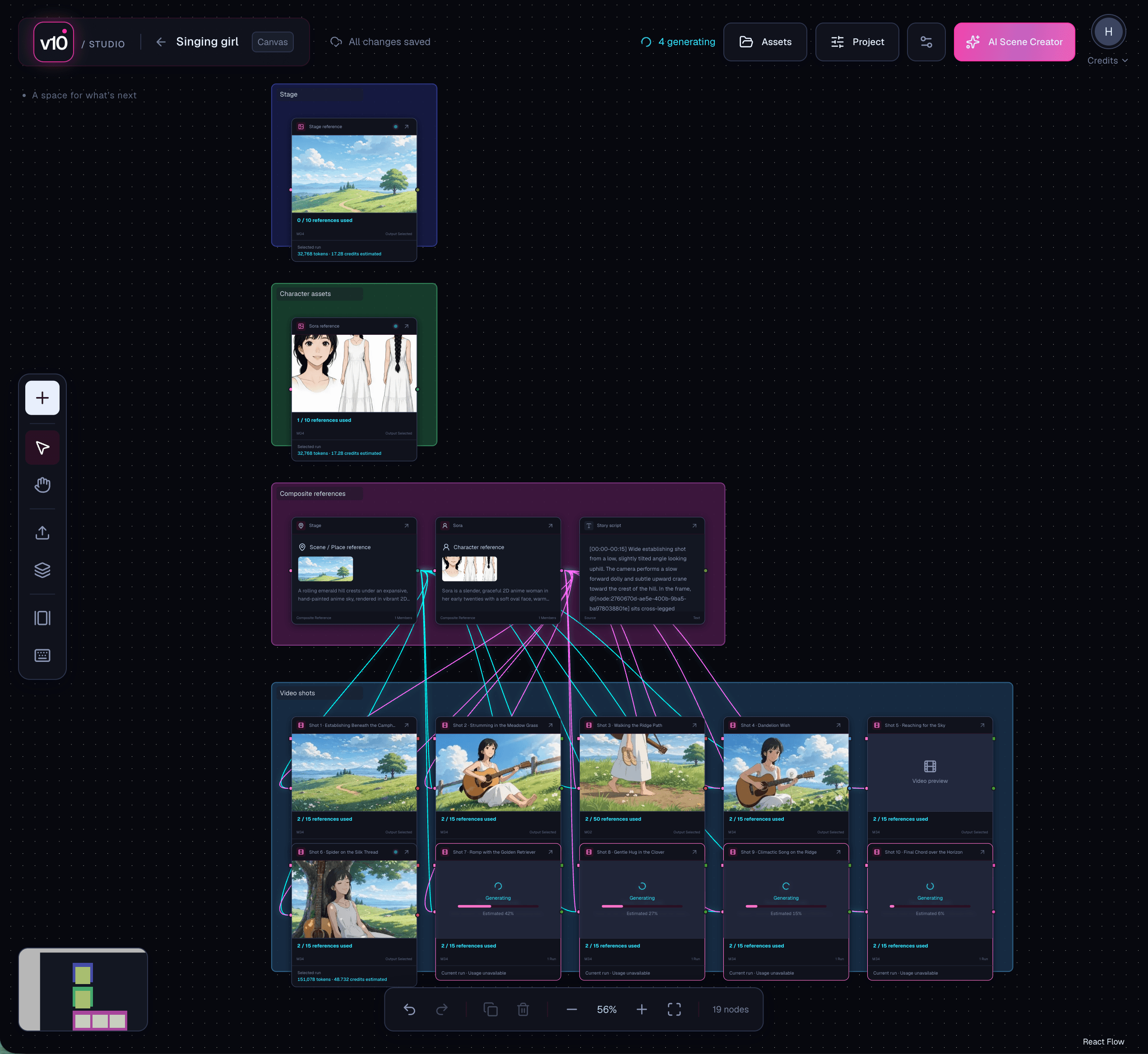
Save the guide’s answers as a named scene, with copies of your reference images if you like, and import it into any other project.
Try AI Scene CreatorThe board
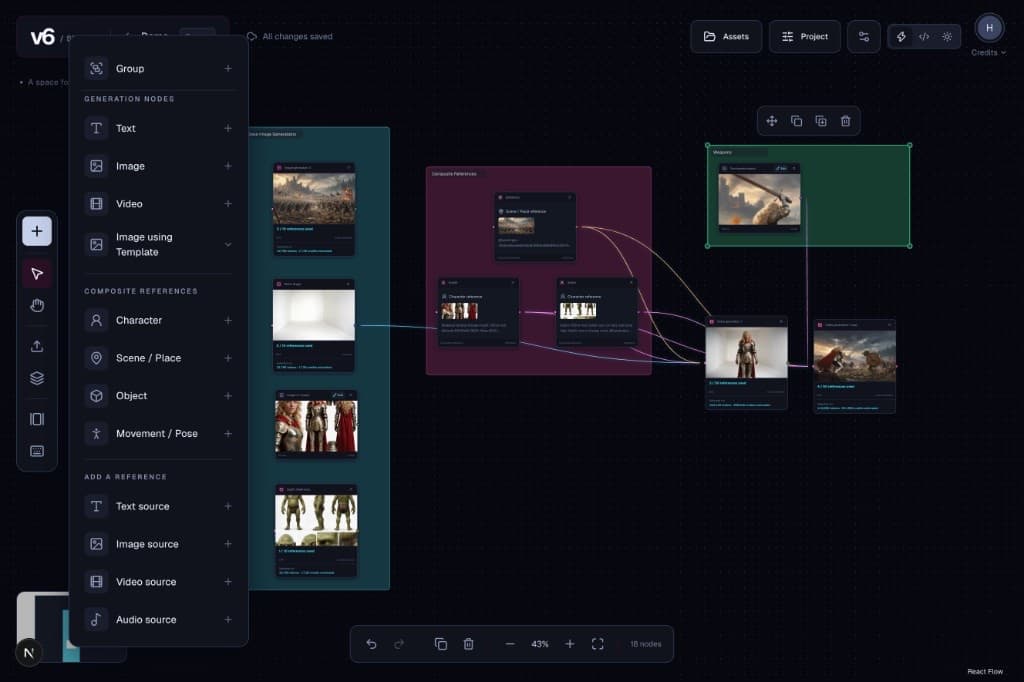
A node-based workflow anyone can read at a glance. Projects hold text, image, video, audio, generation, and composite-reference nodes. You arrange the references; generation is requested, never fired by a connection alone.
Canvas
Simple, feature-rich tools for a private board. Pan, zoom, group, and generate — every node stays in reach.
Screens shown in the Cyberpunk theme.
Text, media, and generation nodes on one spatial board. An easy, intuitive workflow: connect ideas visually and direct every shot in place.
Drop media and mention it with @. Carry a character, a place, an object, or a move into the next take without rebuilding prompts.
Layers, brushes, type, and history. Polish your composition, then generate directly from what you see.
Invite teammates as Read only or Write. Collaborators generate with their own Credits — never touching yours.
Workflow
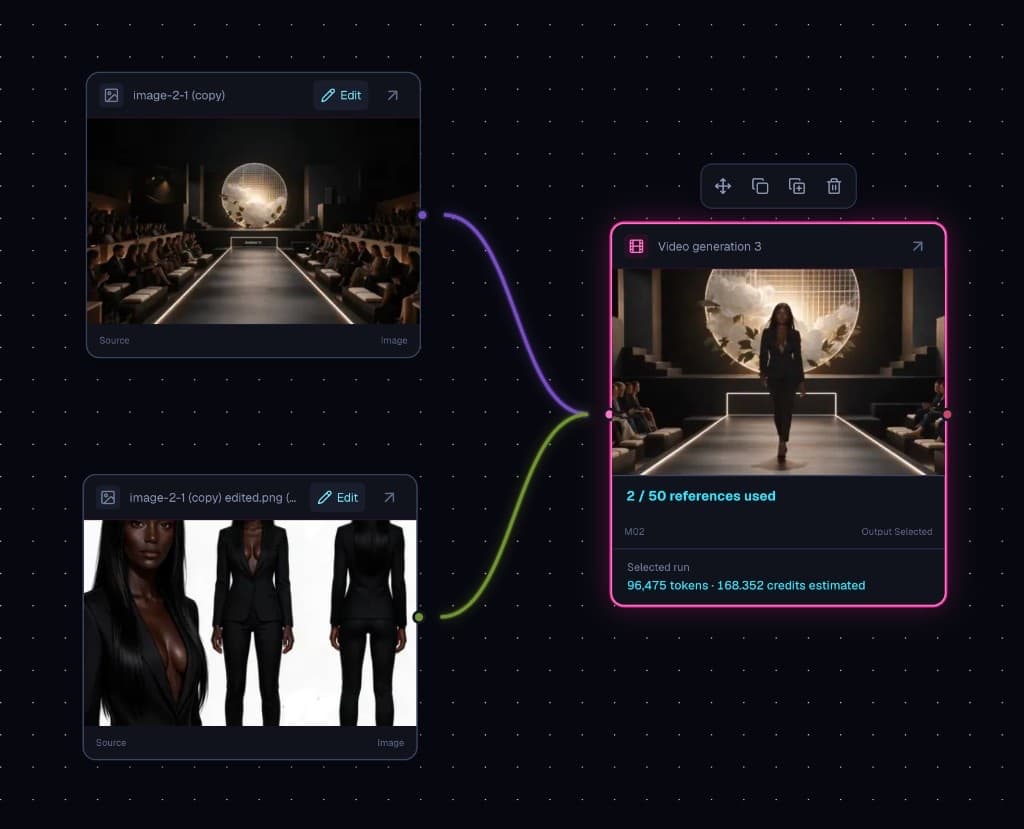
Wire a still into a shot. Drag character, place, and pose across the board without rebuilding the prompt.
Composite references
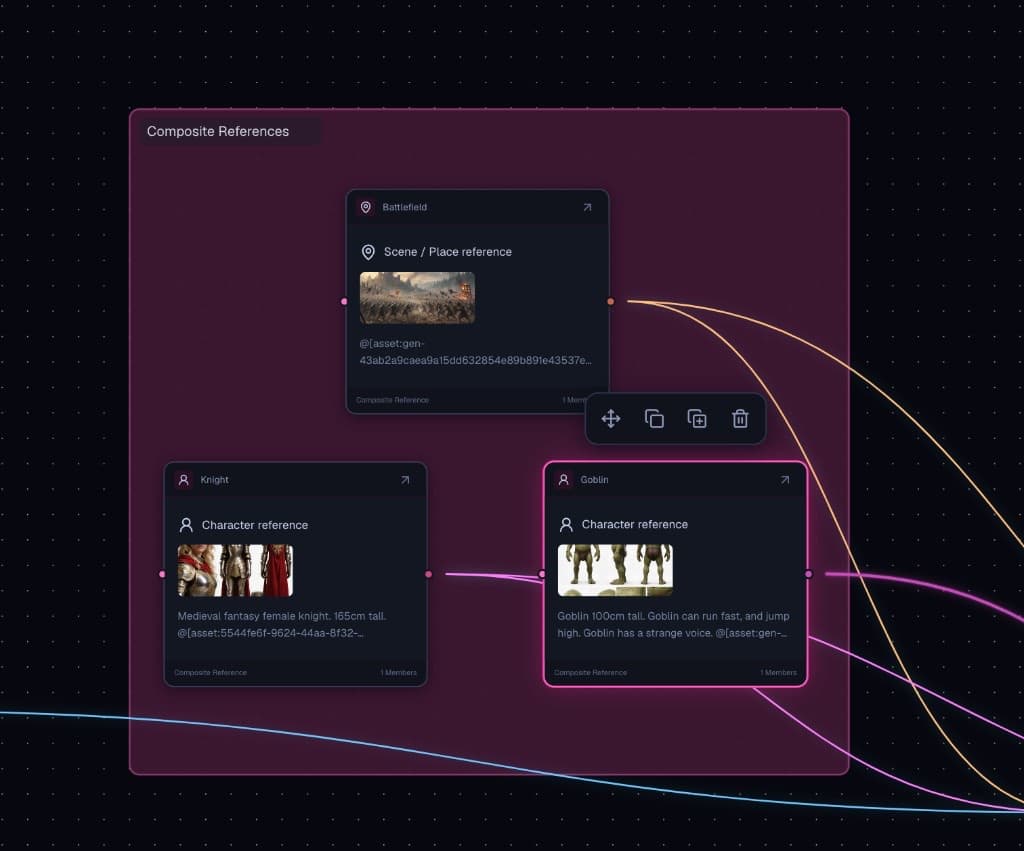
Fold text, image, video, and audio into a Character, a Scene / Place, an Object, or a Movement / Pose. Save it once, @ it into every shot, and reuse it in other projects from the asset drawer.
Production
Keep shots continuous, queue a batch at once, and see what every run costs before you press Generate.
Video nodes have first-frame and last-frame handles. Wire one shot’s last frame into the next shot’s first frame, or let Scene Creator chain them for you. Extract a last frame, save it as an image, or have AI describe it.
Select shots and references and queue them together. Each node shows live progress, and runs keep going even if you close the tab.
Every generation shows its price in Credits before it runs. Credits are held while it runs, and failed generations are refunded.
Browse uploads and generations across projects, drag in or paste new files, and download a selection as a ZIP.
Draft scripts and prompts with text generation nodes, enhance any prompt with AI, and wire the result straight into a shot.
Your first scene is a few answers away.Runs in your browser. The canvas adapts to tablets and phones, too.
Start creatingInside the studio
From the first still to the last take, generate, trim, crop, paint, composite, and connect without leaving the canvas.
Screens shown in the Cyberpunk theme.
Video
Keep the face, the tailoring, and the stride. Generate the runway that belongs to the same person — without rebuilding the prompt.
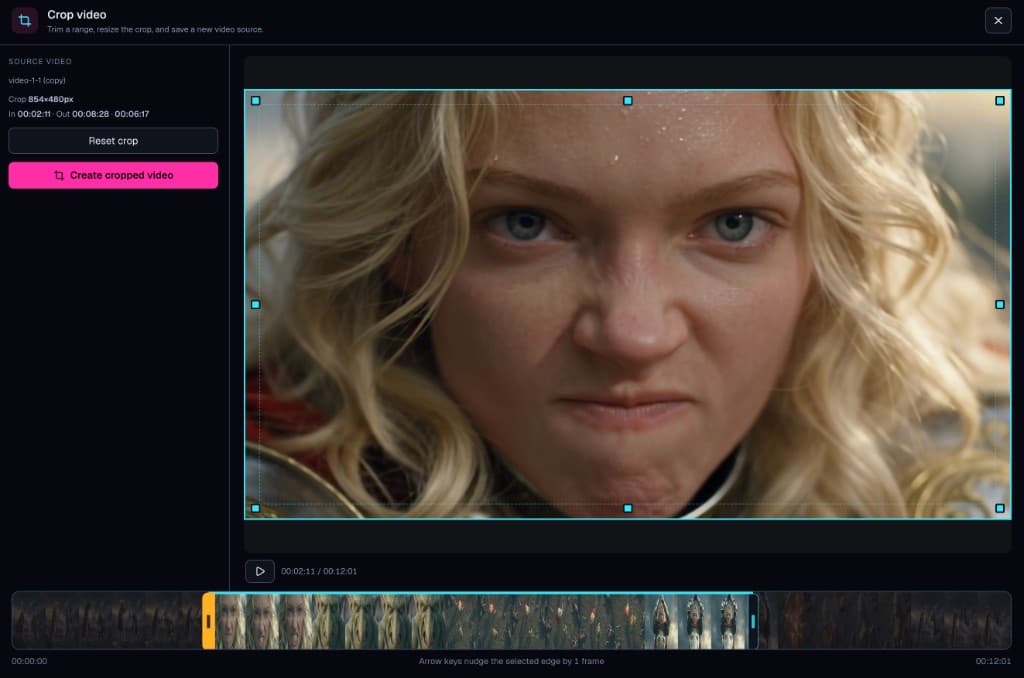
Video
Trim a range, resize the frame, and save a new video source — without leaving the studio.
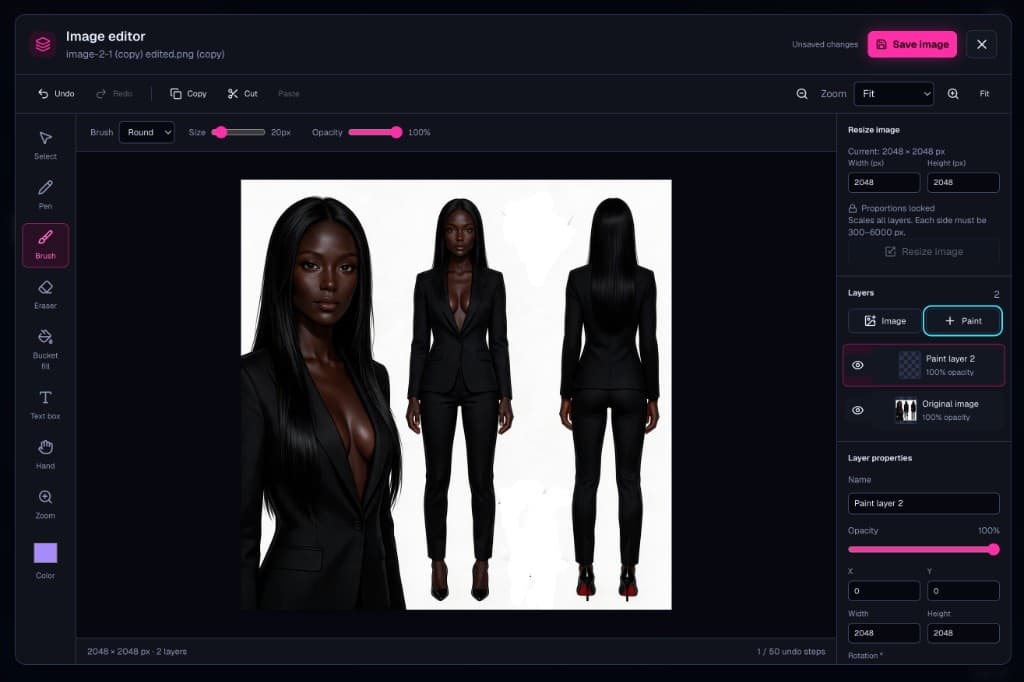
Image craft
Crop, resize, layer, and paint directly in the app. The frame you see is the frame you generate from.
From still to motion
Place the walk. Keep the armor. Then generate the battle that belongs to the same person — on a canvas that remembers every reference.
The final cut
Sequence is the multi-track video editor built into V6. Lay your shots, stills, titles, and audio on a timeline, cut them frame by frame, and export the film without leaving the studio.
New · SequenceBeta
Send any image, video, or audio node to a sequence, or drag it onto the timeline. Open the editor over the canvas, dock it to any side, or give it a full page.
Stack video, stills, titles, and audio on as many tracks as the cut needs. Trim, split with the blade, ripple-delete, and snap to every edit, one frame at a time.
Move, scale, and rotate any layer right on the picture, with snapping to the middle and the edges. Set opacity and fit, and watch the levels as it plays.
Run a clip from 0.25× to 4× with its pitch kept, or play it in reverse. Set gain per clip; linked audio moves, trims, and splits with its picture.
Saves as you work. Teammates with Write access edit the same sequence; Read only members can watch the cut. On a phone, long-press a clip for its menu and pinch to zoom the timeline.
Built for creators
Sign in with an emailed magic link or a biometric passkey. No passwords to leak, reuse, or reset.
Explore demo boards and ready-made image templates to see how scenes come together, then make them your own.
New text, image, and video models are added as they launch, so you always create with current technology.
Looks
Neon night, an engineer’s dark, or soft daylight. Switch anytime from the header or your account, and every screen follows.
Night city contrast with magenta and cyan.
VS Code dark workspace: graphite panels and blue focus.
Soft daylight surfaces and olive ink.
Coming next
The video editor started on this list. It now ships as Sequence, so here is what comes after it.
Planned features. Timing may change.
Stage bodies and camera moves in 3D, then hand that motion to a video model as a precise movement reference.
FAQ
V6 Creative Studio is an AI video generation tool that runs in your browser. It combines the latest AI video and image models with an intuitive node-based canvas and built-in video and image editing tools, so you can go from idea to finished shot in one workspace.
No. You drop references onto a canvas, connect them to a generation node, and describe the shot. Mention references with @ in the prompt, press generate, and V6 keeps every take on the board for comparison.
AI Scene Creator is a guided setup on the canvas. You describe the idea, the stage, up to 6 actors, and the story; it helps you generate stage and character references, then lays out up to 24 video shots of 15 seconds or less with every reference wired in. The shots are created, not run, so you can review each one and generate when ready.
Yes. Sequence, the built-in video editor (in beta), puts your shots, uploads, stills, titles, and audio on a multi-track timeline. Trim, split, and rearrange them frame by frame, change speed, add titles, and export the film as MP4 or WebM. Export renders in your browser and never spends Credits; save the result to your project or download it.
V6 integrates new models as they launch. Current models include V10 Ultra alt, I10 Pro Alt, I10 Pro, Gemini 4 Argon, Grok 4.7, I10 Advanced, V10 Ultra, V10 Prime Pro, I10 Fast, Seedream 5.0 Pro, Seedream 5.0 Lite, GPT Image 2.5 Sunburst, GPT Image 2.5 Flare, V10 Prime, Gemini 3.8 Flash, V10 Fast, V10 Mini, Seedance 2.5, Seedance 2.0 Mini, Seedance 2.0, Wan 3.0 Prime, Wan 3.0, Flux 3, Gemini Omni Flash, Muse Image 1.0, Grok Imagine Image 2.0, Gemini 3.1 Flash Image, Claude Opus 5.5, GPT-6.1 Sol, Gemini 3.1 Flash Lite Image, Qwen 3.8 Omni Flash, Grok Imagine Video 1.5, Kling 3.0 Motion, MiniMax Music 3.0, Seed Audio 1.0, MiniMax Speech 2.6 HD, xAI TTS v1, ElevenLabs v3 TTS, Suno chirp-v6, Suno chirp-v6-wild.
Sequence is a multi-track timeline editor for cutting shots, stills, titles, and audio into a finished film. Video tools trim a range, crop and resize the frame, and cut motion references from a clip. The image editor has layers, brush, eraser, fill, text, crop, resize, and up to 50 steps of history.
Group a character’s images, video, and audio into a composite reference, then mention it with @ in each prompt. V6 sends the same identity, place, or movement to every shot that uses it.
A 3D motion reference tool for staging body and camera movement to guide video generation.
V6 uses Credits. Each generation shows its price before you run it, Credits are held while it runs, and failed generations are refunded.
A space of your own
Sign in or create an account with your email. Passwordless access. Your work, securely saved.
Live-action dark epic fantasy, real cinematography, 24fps.
A lone knight, a ruined castle, dawn haze and drifting smoke.
Handheld energy, natural motion blur, 35mm grain.
[00:00-00:05] wakes alone on the silent .
[00:05-00:10] charges out of the smoke.
[00:10-00:15] Steel meets steel; the duel begins.
[00:15-00:20]
[00:20-00:25]
[00:25-00:30]
Turn an image into a pose sheet, or sample a clip into a motion reference sheet, then add it to a Movement / Pose composite.
Type multi-line titles with weight, tracking, a shadow, a background box, and fades. Place them top, middle, as a lower third, or anywhere you drag them.
Render MP4 or WebM right in your browser, with no Credits spent. Save the cut to the project, download it, or drop it back on the board as a node.

